


Background
This article will reflect on steps to take for first-time Clarity users.
Instructions
Step 1: Click here to go to the Clarity Log In screen.
Step 2: You will enter your email address to begin the account set up. Enter the email address that your Agency Administrator provided to 211OC to set up your HMIS account, this should be your work email address.
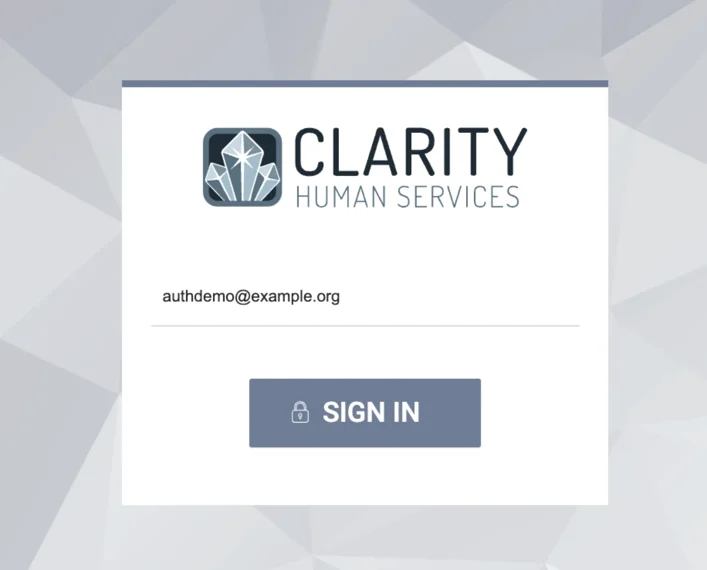
Step 3: When you click Sign In this will trigger the authentication. Users are redirected to the Auth0 login page, where you will enter your account password. For existing users, skip to Step 6
For New users, you will need to select Reset Password.
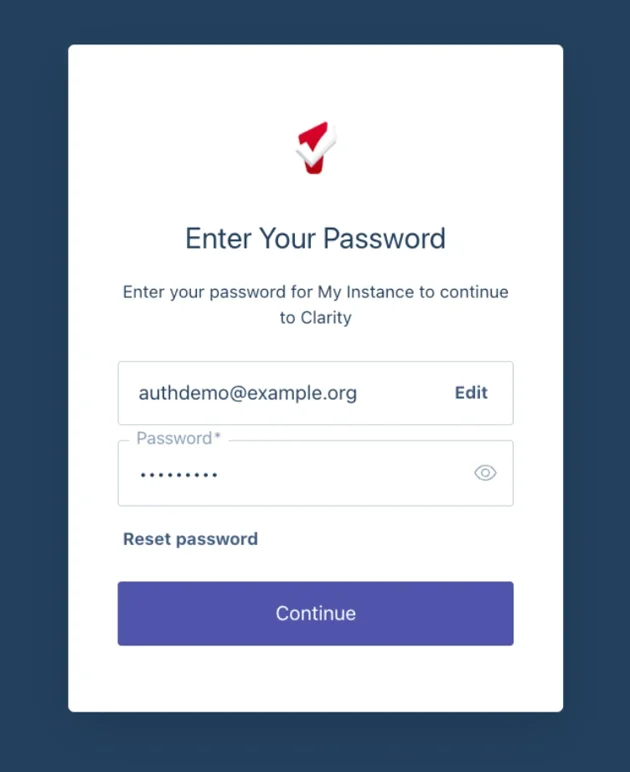
Step 4: You will be redirected to this page which will ask if you would like to Continue this process for your password reset. Select Continue, you will be sent an email to your email address.
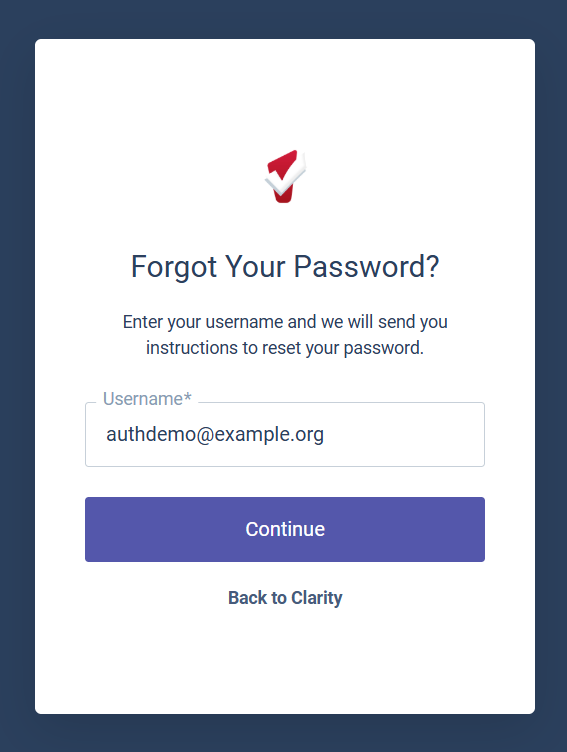
Step 5 : You will receive an email that will contain a link that is valid for only 60 minutes that you will use to set a password for your account. When you click the link it will open the Password page where you will be asked to enter your password twice to verify it was typed in correctly. Select Reset password.
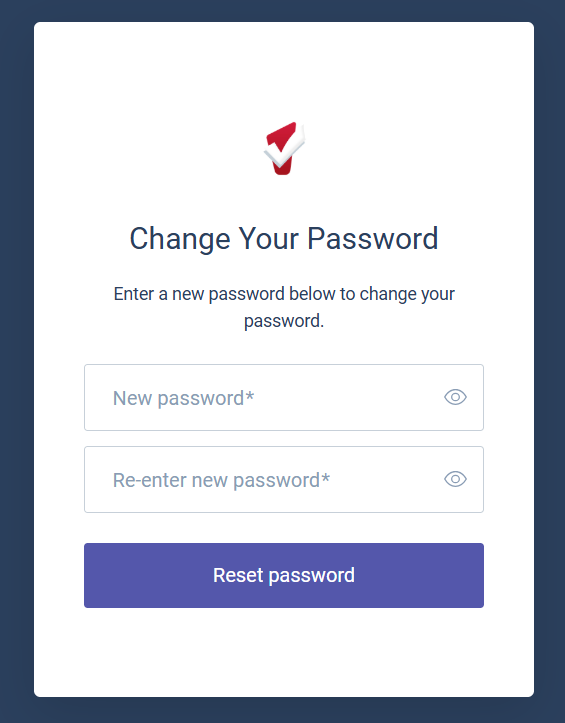
NOTE: A password must meet the following criteria:
- Password must be 8 characters or longer
- Password must contain at least one uppercase character (A through Z)
- Password must contain at least one lowercase characters (a through z)
- Password must contain at least one number (0 through 9)
- Password must contain at least one non alphanumeric characters (such as !,$,#,%)
- Password must not contain spaces
- Password cannot be the same as the three (3) prior passwords used for the login account
- Password cannot contain the name of your Clarity instance
- Password cannot contain the word 'clarity'
- Password cannot contain the user's First Name, Last Name or Username
- Password cannot contain 'ABC' or '123'
- Password cannot contain more than two (2) consecutive characters
Step 6: You will be redirected to the log in page once again so you can now go through the authentication process. You will enter your email address and select Sign In. You will be redirected to the Auth0 page which will allow you to select your authentication method. Some users may already be using Google Authenticator in your work environment or your could simply use your cell phone number to authenticate. There are several options to choose from depending your comfort level. Each authentication method has a different path which we will review.
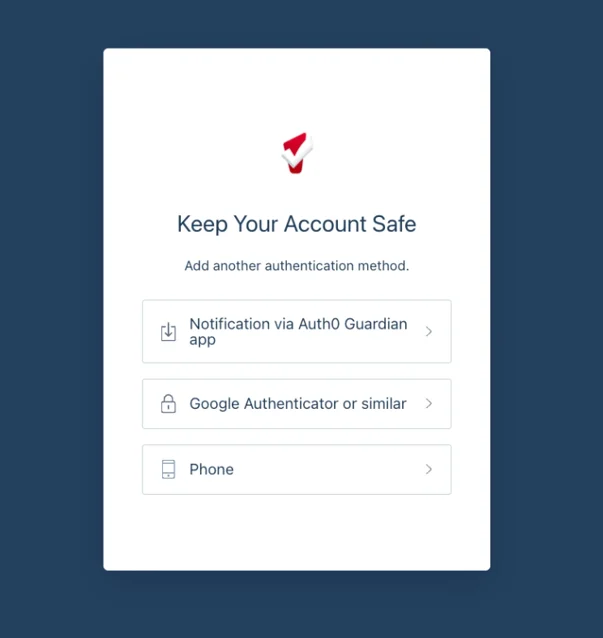
Here are the different authentication methods and how the screen will appear. Each method will have prompts on the screen that will walk you through each method.
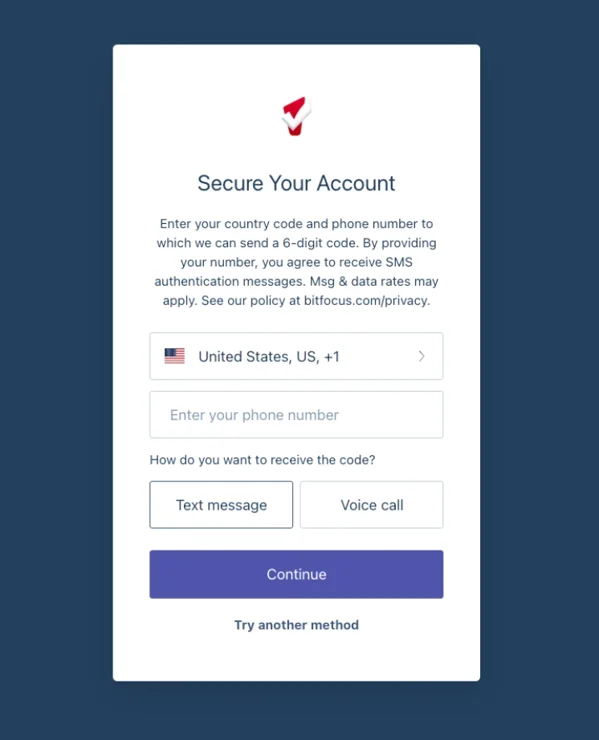
Phone Authentication - The most simple of the authentication methods you just need to enter a cell phone number to obtain a text message or a voice call from BitFocus. You will receive a code that you will enter.
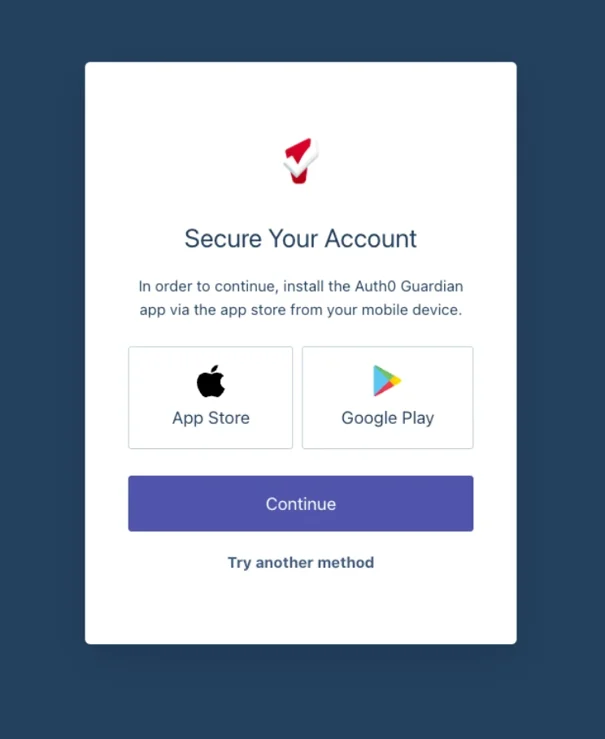
Auth0 Guardian App Authentication - You will be prompted to download the app which will sync to your Clarity account using a QR Code. Once you have added the QR code you will be automatically logged into Clarity. When you need to authenticate again you will receive push notifications to verify a log in is occurring and you select Allow to log in. If you get a push notification and you are not logging into Clarity you can select Deny and it will stop the log in process.
Google Authenticator or similar - With Google Authenticator or Microsoft Authenticator you will be asked to scan a QR Code to add the BitFocus authentication to your app. A code will be generated that you enter into the space where it says Enter your one time code* For any other authentication programs you might be using you will be asked to copy the code into the app and once verified it will start generating a code you can enter into the space where it says Enter your one time code*
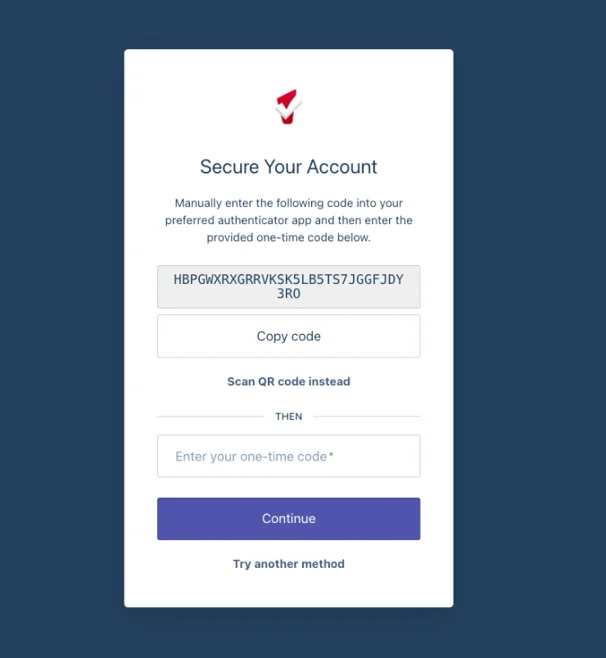
If users cannot use their phones to authenticate, they can use a desktop-based authenticator like Proton.
Step 7 : Once the authentication method is set up, users will be prompted the next time they need to re-authenticate when they log in:
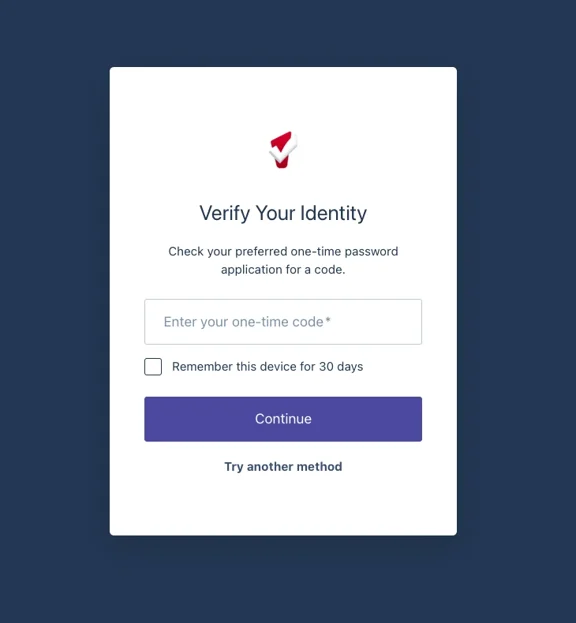
If the Remember this device for 30 days option is checked, an MFA challenge will only be presented after a 30-day grace period. If the Remember this device for 30 days option is not checked, you will be challenged every time you log in.
If you are still unable to access HMIS, please review the Troubleshooting Logging into HMIS article for tips.
Multi Factor Authentication Enrollment (MFA) Steps by Bitfocus

